
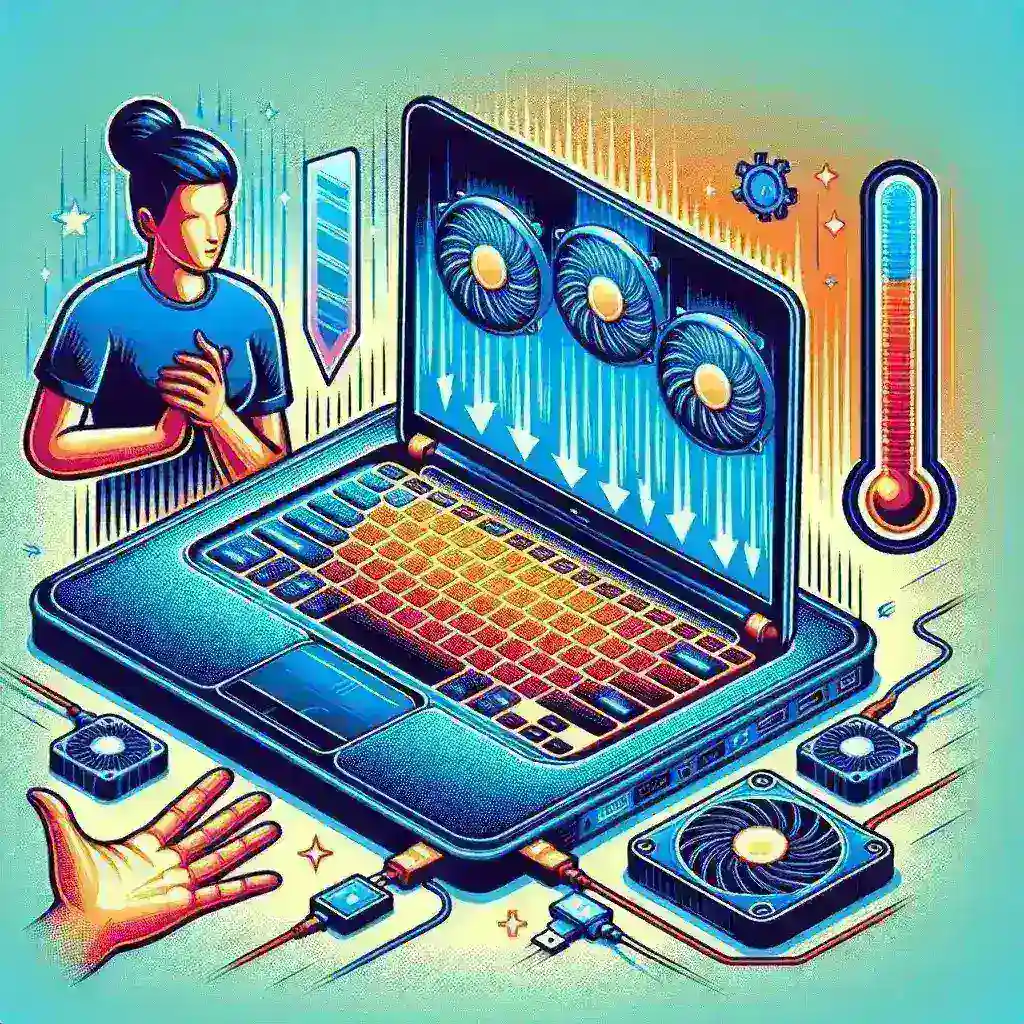
Understanding Laptop Overheating
Laptops are essential tools for work and entertainment, but they can easily overheat due to various factors. An overheated laptop can lead to performance issues, hardware damage, and even data loss. Understanding the reasons behind overheating is the first step in addressing the problem.
Common Causes of Laptop Overheating
- Blocked Vents: Dust and debris can accumulate in the laptop’s vents, restricting airflow.
- High-Performance Tasks: Running demanding applications, such as video editing software or gaming programs.
- Ambient Temperature: Using a laptop in a hot environment can contribute to overheating.
- Old or Failing Hardware: Aging components may not function efficiently, generating excess heat.
- Poor Battery Health: A deteriorating battery can increase the heat produced by the laptop.
Immediate Steps to Cool Down an Overheated Laptop
If your laptop starts to overheat, there are several quick actions you can take to alleviate the problem:
1. Turn Off the Laptop
The quickest way to cool down an overheated laptop is to turn it off. This allows the internal components to cool naturally without further strain.
2. Disconnect External Devices
Remove any peripherals such as USB drives, external hard drives, and additional monitors. These devices can draw additional power and generate heat.
3. Move to a Cooler Environment
If you’re working in a hot room, relocate your laptop to a cooler area. This can significantly help lower the temperature.
4. Elevate the Laptop
Place your laptop on a hard, flat surface to improve airflow. Using a cooling pad or even a book can create space between the laptop and the surface, enhancing ventilation.
5. Clean the Vents
Use compressed air to blow out dust from the vents. Ensure the laptop is turned off and unplugged before cleaning.
Long-Term Solutions for Laptop Overheating
1. Regular Maintenance
Keep your laptop clean, both inside and out. Regularly check and clean the vents, keyboard, and screen.
2. Monitor Usage Patterns
Pay attention to the programs you run and how long you use the laptop continuously. Take breaks to prevent overheating during extensive tasks.
3. Upgrade Hardware
Consider upgrading your laptop’s RAM or replacing the hard drive with a solid-state drive (SSD) for better performance and lower heat generation.
4. Use Cooling Pads
A cooling pad can help maintain lower temperatures by providing additional airflow. These devices are relatively inexpensive and can be very effective.
5. Adjust Power Settings
Modify your power settings to optimize performance and reduce heat production. Lowering screen brightness and limiting background applications can help.
When to Seek Professional Help
If your laptop continues to overheat despite taking preventive measures, it may be time to consult a professional. Persistent overheating could indicate hardware issues such as a malfunctioning fan or thermal paste that has degraded over time.
Signs It’s Time to Call a Technician
- Frequent crashes or restarts.
- Unusual noises from the fan.
- Constant overheating even with minimal usage.
- Burning smell or visible smoke.
Conclusion
Maintaining your laptop’s temperature is crucial for its longevity and performance. By implementing both immediate and long-term strategies, you can effectively manage overheating issues. Remember to monitor your usage habits, keep your device clean, and seek professional assistance when necessary. With proper care, your laptop will remain functional and efficient for years to come.



Leave a Reply